Fraction Buttons
The app features extensive support for fractions, including rounding helpers that make practical applications much easier to use. See the Accuracy section in Setup to learn more about formatting and rounding controls.
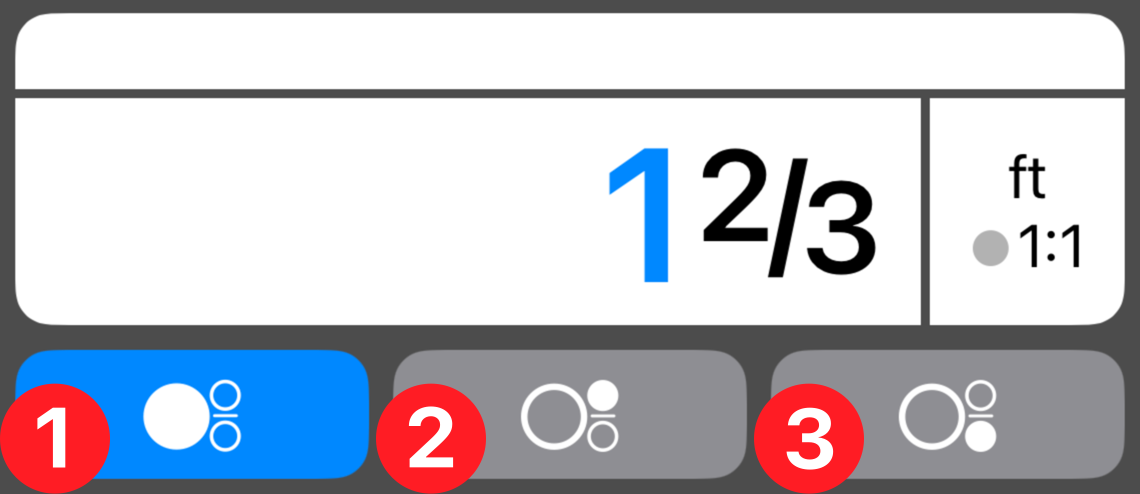
Fraction input is separated into fields:  whole number,
  numerator, and
  denominator. Tapping one of the fraction buttons limits data entry into that particular field. Edit buttons behave as expected in any of the fraction fields.
A data entry shortcut is available: type the decimal version of a value, then tap a fraction button to convert it. For example, typing 0.5 and tapping a fraction button yields 1/2. Repeating decimals need a bit more precision so the calculator can recognize the pattern. Enter 1/3 as 0.33, not 0.3; enter 2/3 as 0.67, and so on.
The same shortcut works on conversion and calculation results, but the output depends on your Fraction Precision setting. For example, with precision set to 1/8, a result of 0.3 rounds to 1/4. Use the "whole number" button to return a mixed fraction (when possible) and the other fraction buttons to return proper or improper fractions. This shortcut is useful if you're comfortable with imperial units and know your rounding setting — otherwise, results can be confusing.