Setup: Accuracy
The Accuracy screen provides important formatting and value rounding features that will help make your conversions and calculations much easier to work with. Options you set here are saved with the active calculator you have selected.
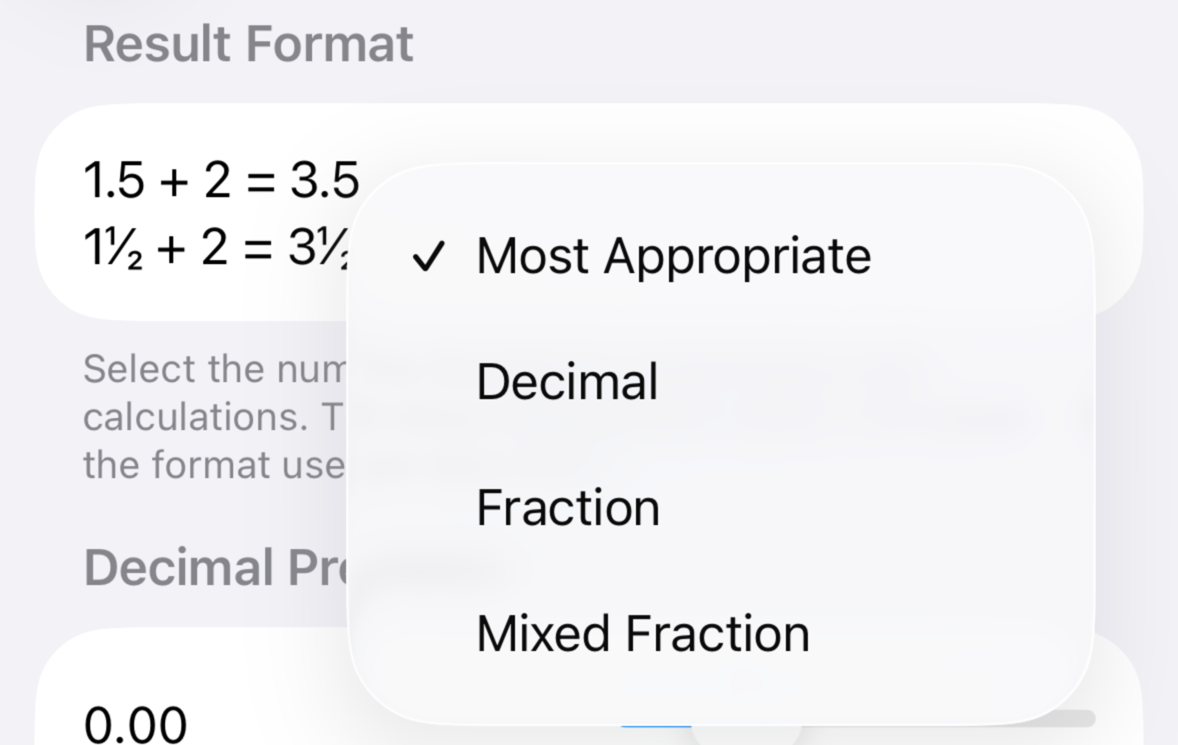
Result Format options determine the final form of your conversions. The neutral option, Most Appropriate, will format a value based on the input that preceded it. For example, if your input included a number in fraction form, then the conversion will also be in fraction form. The options Decimal, Fraction and Mixed Fraction will force the conversion into those respective formats. Please note that the rounding options below may affect the format of some values.
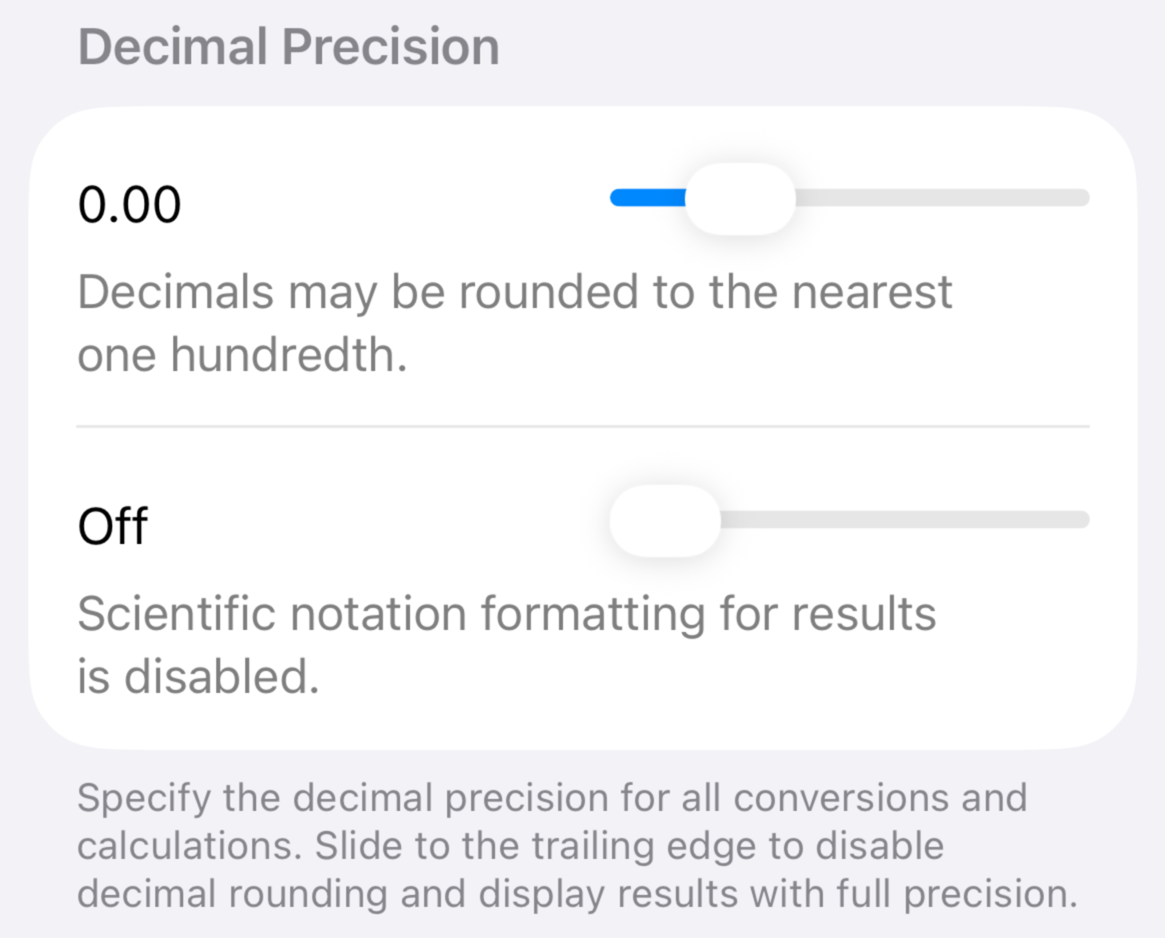
Decimal value rounding and precision are controlled from this panel. The first slider sets the limit of decimal rounding. Moving the slider to the leading edge will force values to round up to the nearest whole number. The trailing edge will display values up to the limits of calculation. Use the value preview to determine where rounding will occur.
The second slider determines how large numbers are formatted using scientific notation. The leading edge disables formatting; other positions will set the mantissa of the notation. For example, setting the result value at 1,000,000 will force the calculator to use scientific notation for values at or above 1,000,000 or below 0.0000001.
You may notice the primary display will use the x10 notation style, but not the History Tape. This was done to improve legibility.
Fraction Precision
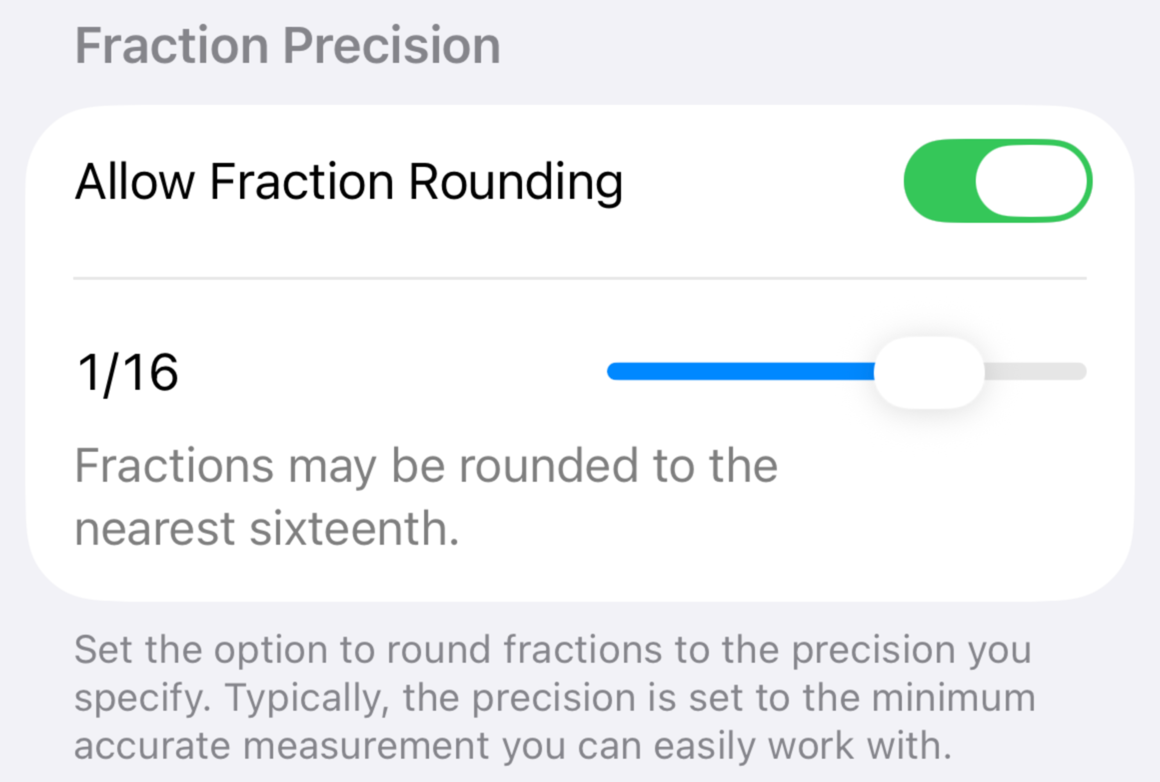
If you work with imperial units, the Fraction Precision panel is important in making conversions and calculations useful. The switch at the top of the panel will turn on the rounding function.
The leading edge of the slider will round up values to a whole number. The other positions will round fractions to the value indicated. Select the value that works best for your project or limits of measurement precision.
You may want to leave this option on at all times. Some conversions and calculations can lead to awkwardly structured fractions that are difficult to parse. Setting the slider to the lower limit of measurement precision that you can easily work with will make your modeling work much more pleasant.
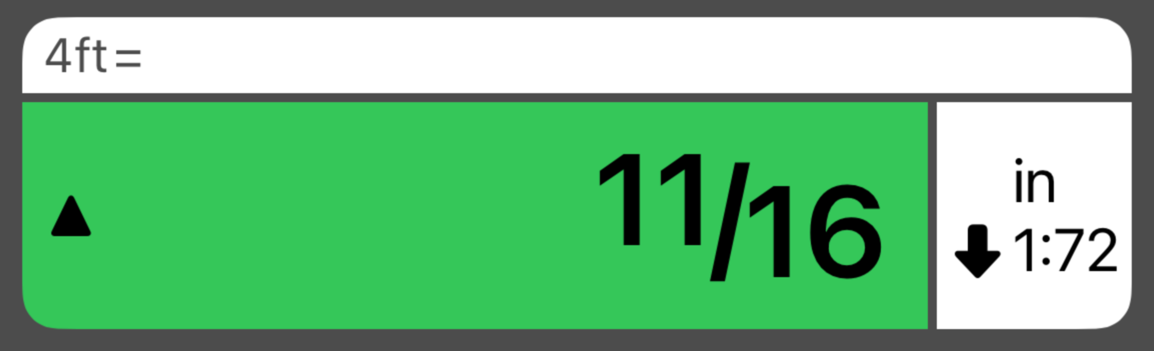
A rounding indicator for fractions may appear to the left of the conversion. This will let you know if the result was rounded up or down, based on the precision you set for fractions.
With the example above, the modeler set fraction rounding to 1/16 because that is their preferred minimum resolution for measurements in inches. A conversion from 4 ft yields a result rounded up to 11/16 in @ 1:72.