Operator Buttons
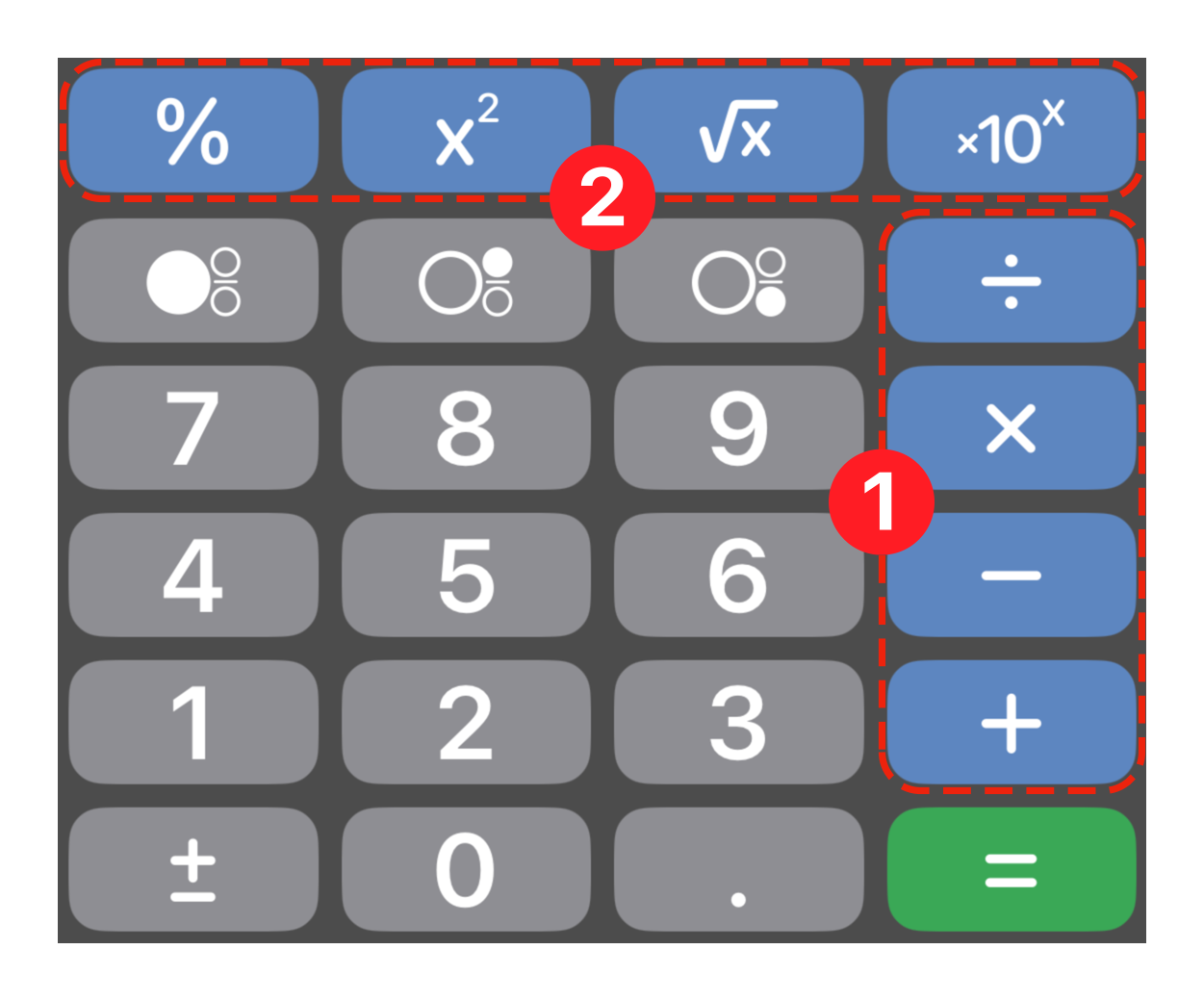
 Standard Operators
 Special Operators
The blue tinted operator buttons are optional features that you can include in your calculators. Visit the Features screen from Setup to learn how to install them.
With few exceptions, all of the operators can be used with any scale or unit — even within the same expression. The app will handle all of the necessary conversions for you. Addition and subtraction can mix scales and units freely, but multiplication and division are performed on neutral values only. Notice that when tapping the multiplication or division button, the measurement buttons are disabled. Currently, no valid use case could be determined for multiplication or division with mixed units or scales. Please send us an email if you discover a scenario that would support it otherwise.
Special Operators
The square, square root, percent and scientific notation buttons are considered Special Operators.
To use the square operator, tap it at any time while entering your base. The square will calculate after you commit your conversion or calculation.
Tap the square root button at any time during radicand entry. The square root will calculate after you commit your conversion or calculation.
Use the percent button with or without an expression. For example, if you entered 50% and then pressed =, the result will evaluate to 0.5 (and then apply unit and scale conversions, as needed). If you use a percentage within an expression, such as 50 − 25%, the result will evaluate to 37.5 (before any necessary scale or unit conversion).
To use scientific notation, enter your significand first, tap the button, and then enter the exponent in the highlighted area. After your conversion or calculation, the result will be formatted according to the conditions you set in the Accuracy screen.
If your calculation expressions grow large, remember that the calculator follows the traditional order of operations.