Setup: Features
The Features options provide additional capabilities. The changes you make here are saved to the active calculator only.
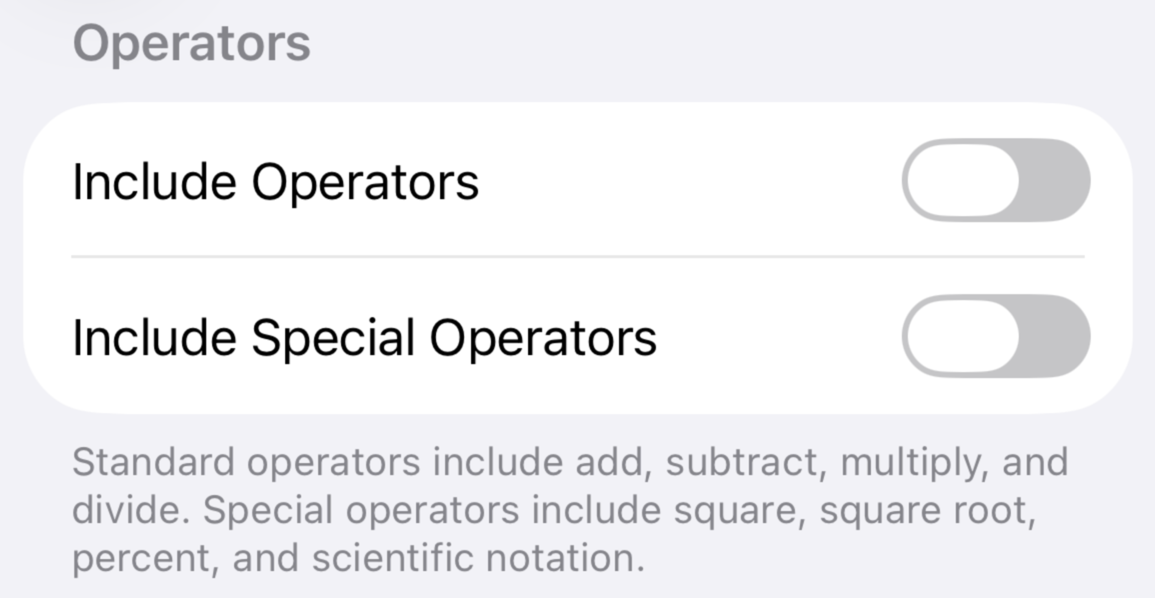
Operators expand the capabilities of your calculator. The first set of operators place the add, subtract, multiplication and division buttons on the keypad. See Operators for how they behave once installed.

Special Operators place the square, square root, percent and scientific notation buttons on the keypad — see Special Operators for details on each.
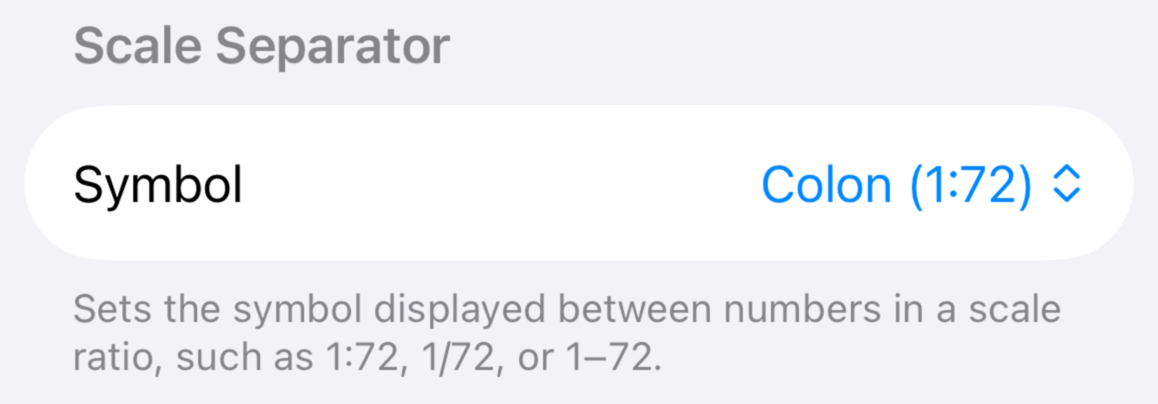
You can change how scales are displayed throughout the calculator. Please note: even though the app works with many languages and locales automatically, there was no reliable way to determine how a scale is typically displayed for a region. We leave it up to you to select the best format.
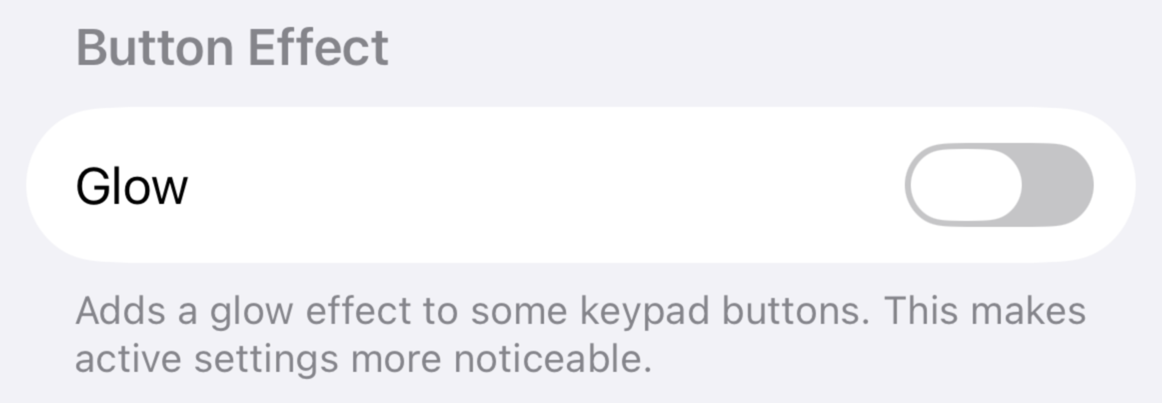
Turn on this option to better highlight the scale and unit buttons on the keypad. This may help to emphasize which buttons are active.
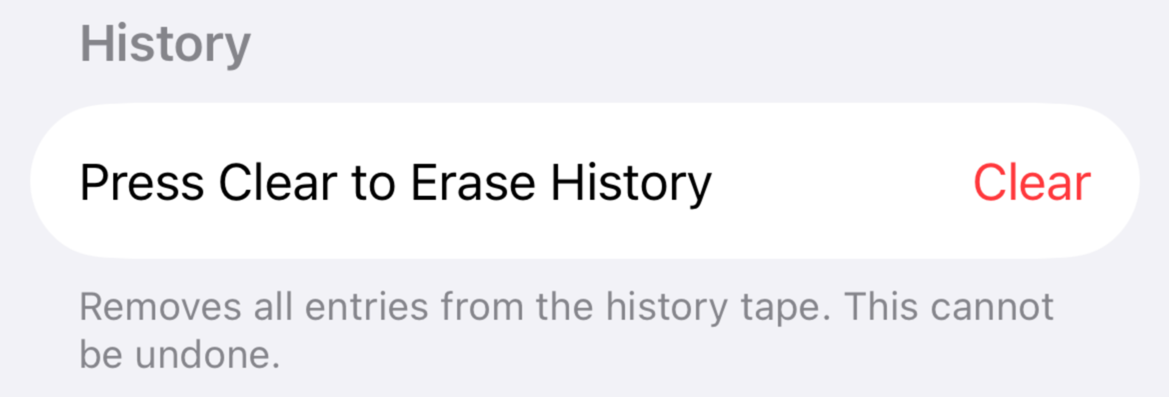
Tap the Clear button to erase all of the rows in the history panel. You also have the option to not display the history tape in the Button and Display Size section.