Setup: Button and Display Size
When you select the button and display size option, the control screen will shrink to make room for a live preview of the calculator keypad. When you exit this screen, the setup view will return to normal size. Changes are saved automatically for the currently selected calculator only.
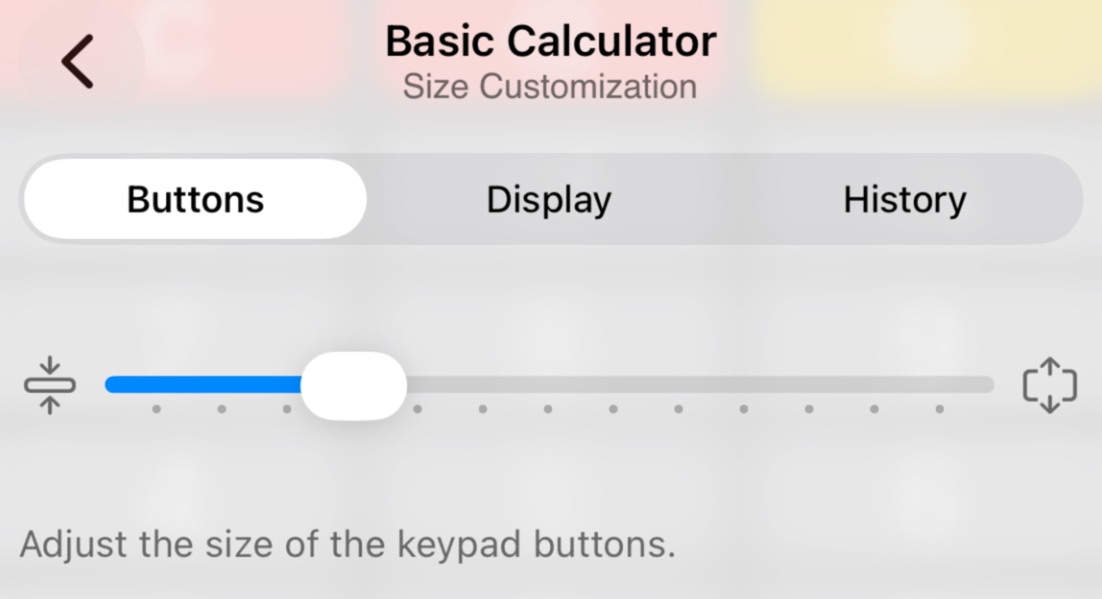
The Buttons selection gives you control over the height of each button on the keypad. Use the slider to affect the keypad in the background. Keep in mind that if you add or remove operators after setting the button height, the view will substantially change.
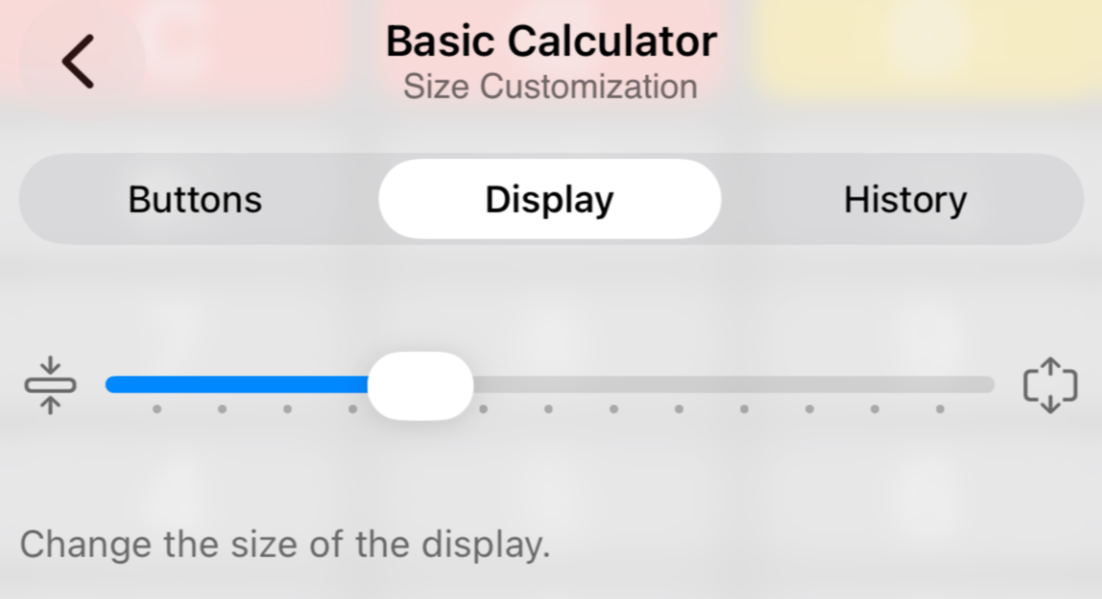
The Display can also be changed with the slider. Notice that when you grow the display, the available space to format a value is diminished. The calculator will compensate by adjusting the display font.
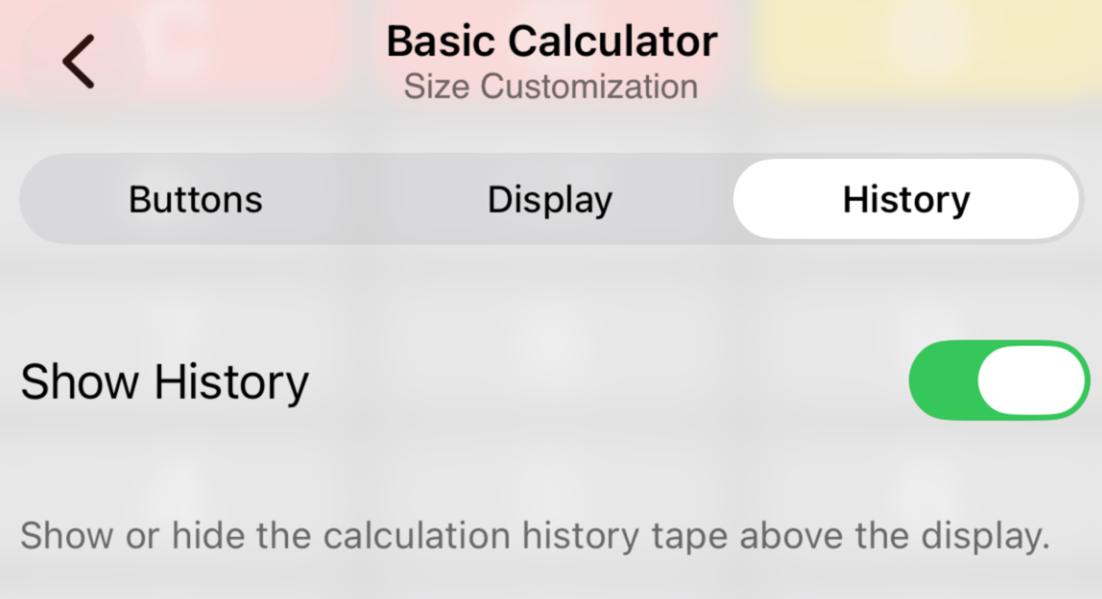
Switch off the history tape if you don't need it or if space is too constrained. You may want to revisit your button and display height settings after using this switch.