Measurement Scales and Units
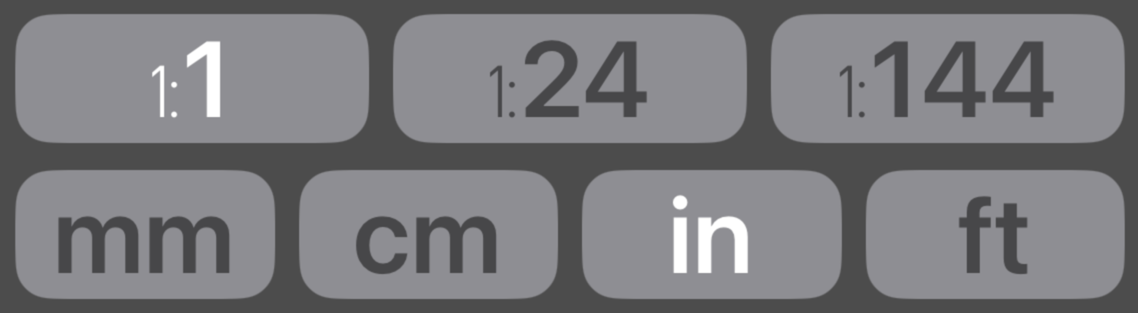
A measurement scale and unit button is always active and represents how you are working with your object or subject. To change to another scale or unit, tap the button and the text will become brighter, signaling that this is your measurement base.
For most tasks, you will measure in 1:1 scale and may never need additional scales. Visit the Scales option from the Setup button to remove or change any scale. If you remove all of the scales in the measurement row, the calculator will default to 1:1 scale. This is useful if you want less clutter on the keypad.
You may have up to five buttons in each row. Consider building multiple calculators for different tasks, each with the scales and units suited to that project — this saves you from reconfiguring buttons partway through a build. Refer to the Setup section for further details.
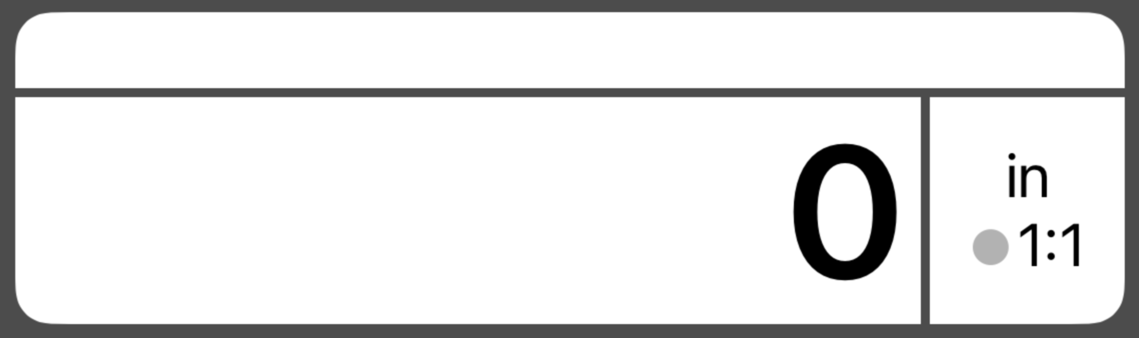
Notice that the active unit and scale is also displayed in the Result Display. The gray circle is the neutral scale direction indicator, which may change after a conversion or calculation. If the measurement and result scale are the same value, the calculator will only perform a unit conversion.
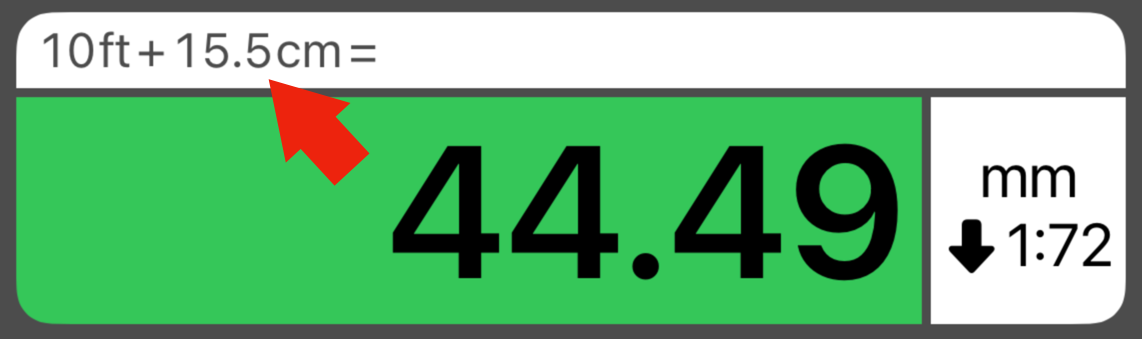
You have the option of mixing any scale and unit during a calculation. The expression field in the result display will help you keep track of your data entry. Remember that a measurement scale and unit is always active and will be the last buttons lit after a mixed calculation.