Result Scales and Units
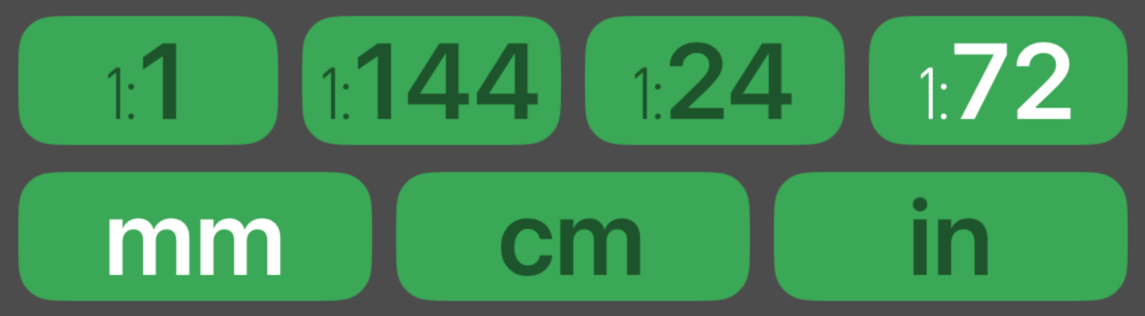
Much like the measurement scales and units, there is always an active result scale and unit. You can change to another scale and unit at any time. The green equal button in the data entry section commits a conversion or calculation using the active scale and unit. A successful conversion will display a green background in the result display.
Just like with measurement scales and units, you can have up to five buttons in each row. You are encouraged to design custom calculators for your projects in the Setup section.
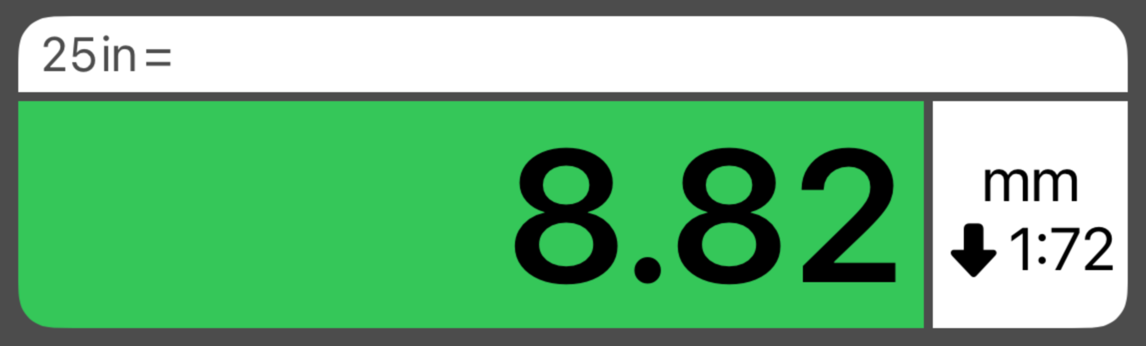
The result display will show the unit and scale for your conversion. The arrow next to the scale indicates if your object is scaled up or down. A gray circle means that no scaling was applied.
After tapping the equal button, you can perform additional conversions without having to re-enter your measurement. Just press any result scale or unit and the app will reconvert your original result.